25. Customer Reviews & Reputation (Pro)
Ask every finished customer for a review automatically, keep the bad ones off your website and inside your shop, and put the good ones in front of the next buyer.
Note: Customer Reviews requires an active Pro subscription.
25.1 Why Bother, and What the App Does For You
Countertops are a referral business. Most shops know they should ask for reviews and most shops forget, because the moment to ask — a day or two after the install, while the customer is still happy — is exactly the moment everyone has moved on to the next job.
Stone Project asks for you. When a project reaches the Completed stage, the app schedules a review request to that project's client and sends it after a delay you set. Nothing lands on your public website until you have read it and approved it.
Two screens run the whole thing:
| Screen | Where | What it is for |
|---|---|---|
| Customer Reviews dashboard | Settings > Client Experience > Client Reviews | Your numbers and the moderation queue |
| Review Settings | The gear icon in the top-right of that dashboard | Timing, email wording, negative-feedback handling, the public widget |
25.2 When the App Asks on Its Own
The request is triggered by one thing: a project moving into the Completed stage.
- You move a project to Completed.
- The app checks that review requests are enabled and that the project's client has an email address on file.
- It schedules the request for a set number of hours later — 24 hours by default.
- When that delay expires, the client receives the email.
A note goes onto the project's activity log the moment it is scheduled, so you can always see that a request is on its way and when.
Setting the delay
- Go to Review Settings > Review Requests.
- Turn on the main switch if it is off.
- Set Delay (hours) — how long to wait after project completion before the request goes out.
Anything from 0 to 720 hours (30 days) is accepted. Zero sends it immediately. A day or two is the usual choice: long enough for the customer to live with the counter, short enough that the job is still fresh.
Skipping it for one project
When you move a project to Completed, the stage dialog includes a Request review checkbox, ticked by default, with the note Send review invitation when project is completed. Untick it for the jobs you would rather not ask about — the difficult customer, the warranty rework, the one that ran three weeks late.
One request per project
If a project already has a pending or sent invitation, the app will not create a second one. Moving a project out of Completed and back in does not re-ask the same customer.
Requests expire
An invitation is good for 30 days. After that the link stops working and the customer gets an "expired" page instead of the rating form.
25.3 The Request Email
Review Settings > Review Requests holds the wording.
| Field | Notes |
|---|---|
| Email subject | The subject line, up to 100 characters |
| Custom Message (optional) | A personalized paragraph inserted into the email body, up to 1000 characters. Leave it empty and the standard wording goes out on its own |
Use the custom message to sound like your shop rather than like software — mention the crew, the material, the fact that you stand behind the seam. It sits inside the standard template, so you are adding to the email, not replacing it.
Send yourself a test
Once you have a Google Business Profile selected and requests enabled, a Test Review Request card appears with your own email address printed on it.
- Tap Send Test Email.
- The email arrives in your inbox exactly as a customer would receive it.
- Open the link and walk the whole flow yourself before your first real customer does.
Test invitations are marked as tests and expire after 7 days, so they do not clutter your real numbers.
Test after every wording change
The custom message is the part most likely to read badly in a real inbox. One test send costs you thirty seconds and catches the typo before two hundred customers see it.
25.4 What the Customer Sees, and the Google Hand-Off
This is where the internal review and the Google review are two different things, and the order matters.
- The customer clicks the link in your email and lands on a rating page carrying your company name.
- They pick 1 to 5 stars and can add a written comment (up to 2000 characters).
- They submit. That submission becomes an internal review — it goes into your moderation queue and nowhere else yet.
- Only then, if the rating is at or above your minimum, are they invited to also post the review on Google.
So every customer is asked privately first. The public Google ask is the second step, offered only to the people who just told you they are happy.
Setting the minimum
Go to Review Settings > Review Requests > Minimum Rating for Google Invite and tap the star count. Default is 4+ stars.
- A customer at or above the minimum sees the Google invitation.
- A customer below it does not. Their feedback stays with you.
Connecting your Google Business Profile
At the top of Review Settings, search for and select your Google Business Profile. The search is pre-filled with your company name. Without this connection there is no Google page to send anyone to, and the Google step is skipped entirely.
Tracking it
The dashboard reports Google Clicks and a Conversion rate, so you can see how many of the invited customers actually followed through — the gap between "was invited" and "clicked" is usually larger than shop owners expect.
Two different reviews, two different homes
The internal review lives in Stone Project and, once you approve it, on your own website and widget. The Google review lives on Google, and Stone Project cannot edit, delete or moderate it. Rejecting a review here does nothing to a Google review the same customer already posted.
25.5 The Moderation Queue
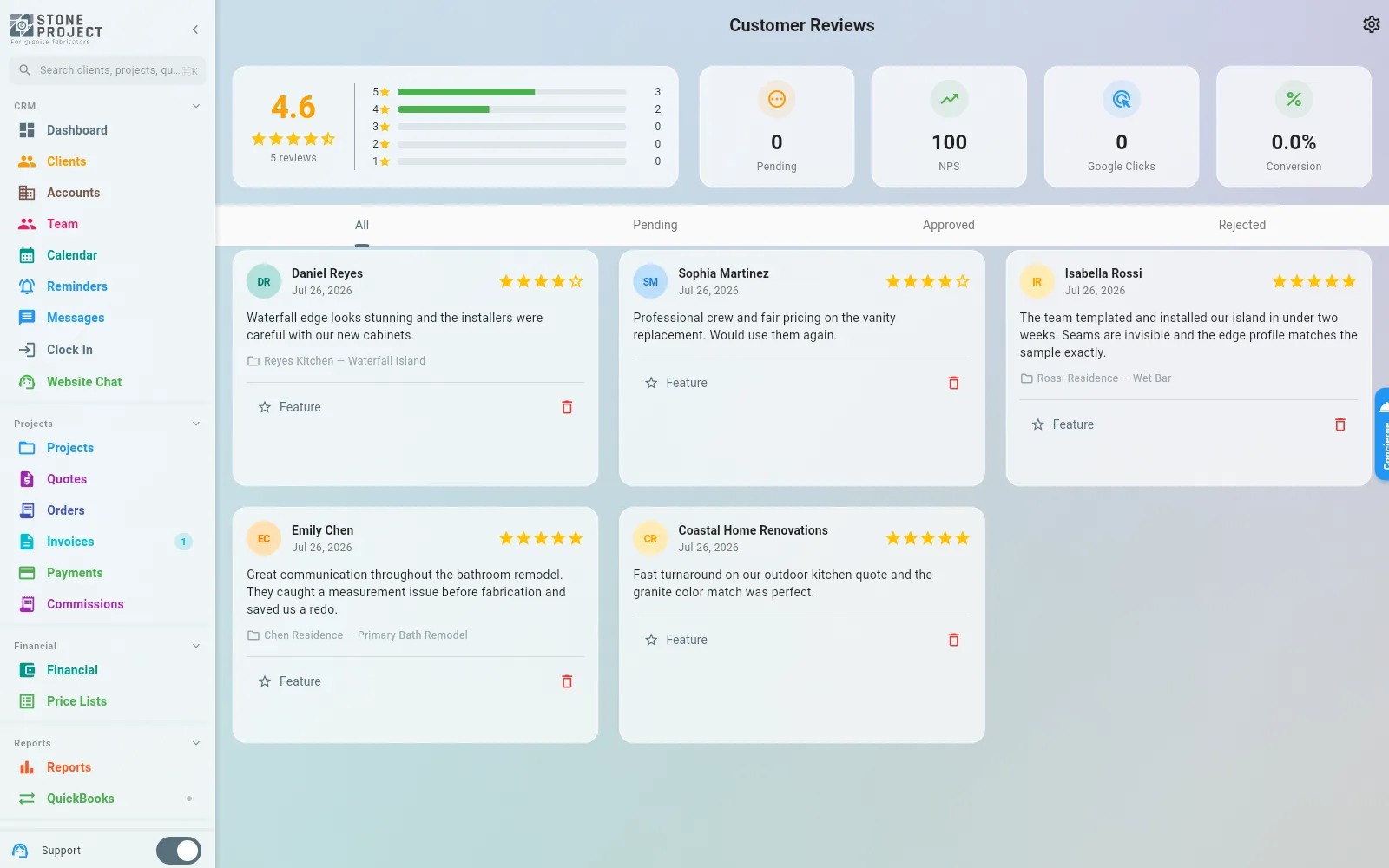
Access: Settings > Client Experience > Client Reviews.
Nothing a customer writes reaches the public without you saying so. Every submitted review arrives as Pending and sits there until you act.
The list is split into four tabs:
| Tab | What is in it |
|---|---|
| All | Every review, whatever its state |
| Pending | Submitted and waiting on you. The only tab you have to work |
| Approved | Live on your website and widget |
| Rejected | Turned down. Not public, but kept on record with your reason |
Approving
Tap Approve on the review card. It goes public immediately — the Reviews page on your website and the embeddable widget both pick it up, and your public star average recalculates.
Rejecting
- Tap Reject.
- A dialog asks for an optional reason (up to 500 characters).
- Confirm.
The reason is for your own records — the customer is not shown it. Use it so that six months later you know why a review was turned down.
Featuring
Once a review is approved, Feature pins it to the top. Featured reviews sort first in the embeddable widget and carry a Featured tag there. Use it for the two or three that best describe the work you want more of.
Only approved reviews can be featured.
Deleting
Delete removes the review entirely, after a confirmation. Rejecting keeps the record and hides it; deleting throws it away. Prefer Reject unless the entry is genuine garbage, such as an obvious duplicate or spam.
There is no public reply
Stone Project does not publish a company response underneath a review. If a review needs answering, answer it off the page — call the customer, or work the support ticket the app opened for you (see below). What you control here is whether the review appears at all.
Reading your numbers
Above the tabs, a statistics card sums up the account:
| Figure | Meaning |
|---|---|
| Average | Your star average, with the review count underneath |
| Distribution | How many reviews sit at each star level, 1 through 5 |
| Pending | How many are waiting on your decision right now |
| NPS | Net Promoter Score derived from your ratings — green above 50, amber from 0 to 50, red below |
| Google Clicks | How many invited customers clicked through to Google |
| Conversion | How many sent invitations turned into a submitted review |
25.6 A Bad Review Becomes an Internal Ticket
A review under 4 stars counts as negative. When one comes in, the app can turn it into a support ticket for your own team instead of letting it sit unread in a queue.
Turn it on: Review Settings > Negative Feedback > Auto-Create Support Tickets. On by default.
When a negative review lands, the app opens a ticket automatically:
- Subject — "Negative review from" plus the customer's name.
- Body — the customer's name and email, the star rating, the project if there is one, and the full comment.
- Priority — High for 1 and 2 stars, Medium for 3.
- Tagged —
review,negative-feedback,auto-created. - Assigned to the company owner.
The ticket is linked back to the review, so you can move from one to the other.
This is the whole point of asking privately first: an unhappy customer who fills in your form ends up as a task on your desk, not as a one-star post on Google. Work the ticket, fix the problem, and the customer often ends up somewhere better than where they started.
Leave it on
Switching this off does not make negative reviews go away — it only removes the thing that makes you notice them.
25.7 Publishing Reviews on Your Site
On your Stone Project website
Approved reviews feed the Reviews page of your public website automatically. Switch that page on under Settings > Client Experience > My Website > Pages — it is on by default.
The page shows your star average out of 5, the total count, and then each approved review as a card with its stars, the comment, the customer's name, and the month and year. Reviews are paginated 12 at a time, newest first. See Your Public Website & Live Chat.
On an outside website
If you run a separate website elsewhere, the embeddable widget puts the same reviews there.
- Go to Review Settings > Public Widget.
- Turn on Enable Reviews Widget.
- Set the options below.
- Copy the Embed Code and paste it into your other site's HTML.
| Option | Choices |
|---|---|
| Widget Theme | Light, Dark, or Auto (follows the visitor's device setting) |
| Widget Layout | List, Grid, or Carousel |
| Maximum Reviews | 3, 5, 10, 15 or 20 |
| Show Rating | Show or hide the star rating on each card |
| Show Date | Show or hide the review date |
A live preview appears under the settings while the widget is enabled and redraws as you change the options, so you can see the result before you copy anything.
The widget also shows a summary block at the top — your average score, stars, and "Based on N reviews" — and marks featured reviews with a Featured tag. Only approved reviews are ever served to it.
Re-copy after changing the options
The theme, layout and limit are baked into the embed code itself. If you change any of them, copy the snippet again and replace the old one on your site.
25.8 Reviews and Your Marketplace Profile
There are two independent rating systems in Stone Project, and it saves a lot of confusion to keep them apart.
| Customer Reviews | Marketplace Rating | |
|---|---|---|
| Who writes them | Your own customers, after a completed project | Other Stone Project members who have dealt with you |
| How they are collected | The review request email described on this page | Written directly on your company profile by another member |
| Where they show | Your public website and your embeddable widget | Your company profile on the marketplace |
| Who moderates | You — nothing goes live without approval | Not moderated by you |
Approving a customer review does not change the star rating on your marketplace profile, and a marketplace review does not appear on your website. They are separate scores from separate audiences.
What a marketplace buyer sees
On your company profile in the marketplace, a buyer sees your star average and review count from other members, your reviews list, and — if your company has been verified — a verified badge next to your name. Verification is a company-level trust mark, not a per-review one; see Company Management > Company Profile for what it takes.
Buyers can also write a review of your company from that profile. They cannot review their own company, and each company can review yours once.
Related
- Your Public Website & Live Chat — the Reviews page and where these reviews are published
- CRM & Client Management — projects, clients, and the Completed stage that triggers a request
- Company Management — company profile and the verification badge
- Marketplace — how buyers find and evaluate your company
- Settings — where the Client Experience screens live