8. Calendar & Scheduling (Pro)
Schedule jobs, manage your calendar, and optimize daily routes.
Note: Calendar features require an active Pro subscription.
🇪🇸 ¿Prefiere español? Calendario y Flujo de Trabajo — Guía de inducción.
8.1 Calendar Overview
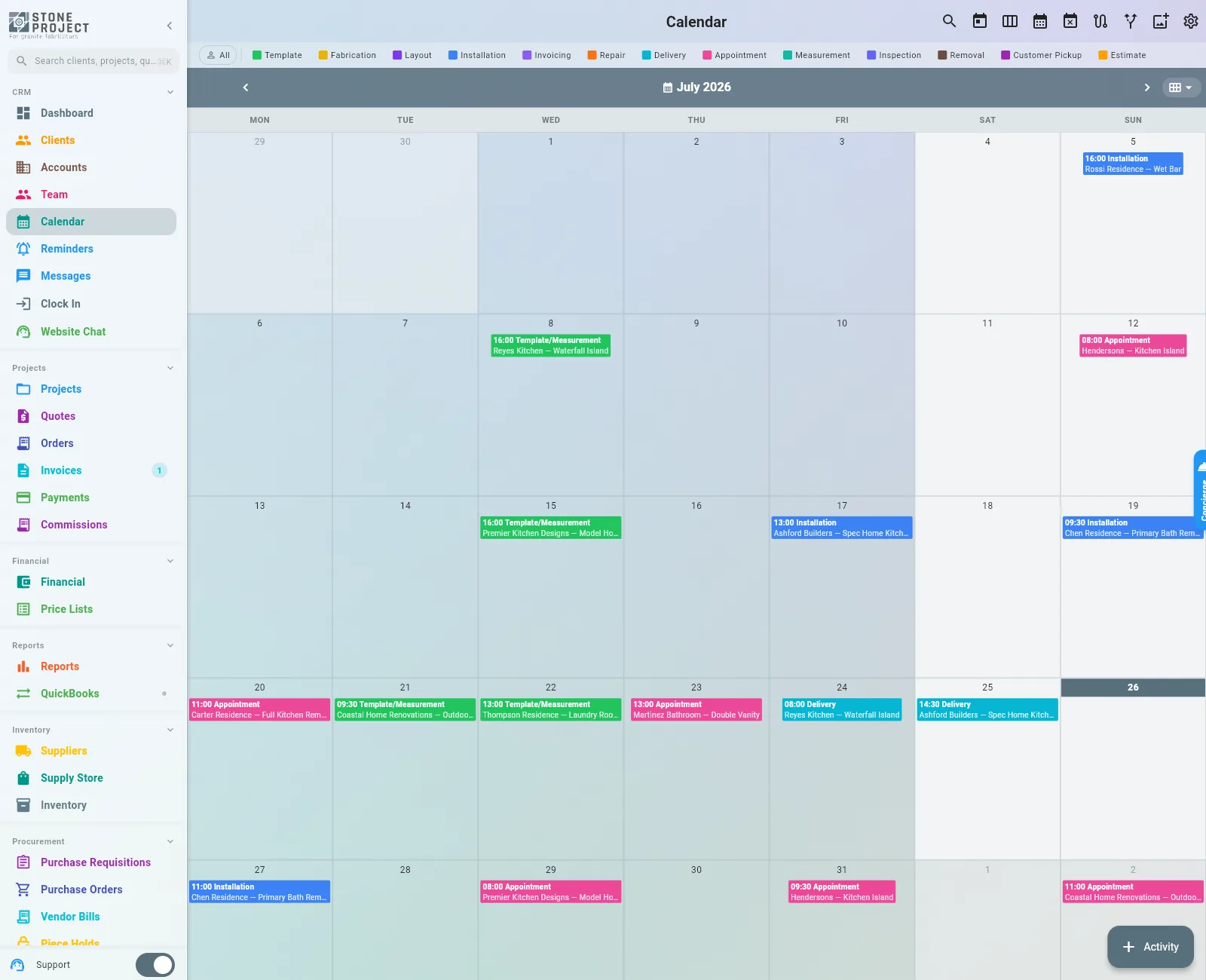
The calendar helps you manage your schedule, track job appointments, and plan installations.
Access: Go to More > Calendar.
Calendar Views
| View | Description |
|---|---|
| Day | Detailed view of a single day's events |
| Week | Weekly overview with time slots |
| Month | Monthly calendar with event indicators |
Tap any date to see its events, or tap an empty time slot to create a new event.
8.2 Creating Events & Jobs
New Event
- Tap the + button or tap an empty time slot.
- Fill in the event details:
| Field | Description |
|---|---|
| Title | Event name (e.g., "Install - Johnson Kitchen") |
| Date & Time | Start and end time |
| Location | Address for the event |
| Client | Link to a CRM client (optional) |
| Project | Link to a project (optional) |
| Type | Measurement, Template, Installation, Delivery, Other |
| Team Members | Assign team members to the event |
| Notes | Additional details or instructions |
| Color | Color-code by event type |
- Tap Save.
Event Types
| Type | Description |
|---|---|
| Measurement | On-site measurement appointment |
| Template | Template creation visit |
| Fabrication | In-shop fabrication block |
| Installation | On-site countertop installation |
| Delivery | Material delivery |
| Follow-up | Client or project follow-up |
Custom activity types
The built-in list is not the whole story. Settings → Activity Types is where you add types your shop actually runs — for example Removal and Template, when the crew pulls the old tops and templates in the same visit.
On each custom type, Counts as tells the project which built-in visits that type already covers. Tick Template and Measurement on a Removal and Template type, and a scheduled visit of that type clears the "Measurement not scheduled yet" alert. You should not also book a separate Template/Measurement for the same job.
That mapping lives on the activity type, not on the workflow stage. There is no separate setting for "which types count as a measurement" beyond those flags.
8.3 Route Planner and the Map
Two buttons in the Calendar toolbar answer the two questions crews ask: where are we that day and in what order do we go.
Map — where the work is
Tap the map icon in the Calendar toolbar. It plots the jobs of whatever you are currently looking at — the day, the week — as pins, split into two groups you can show or hide:
- Template/Estimate
- Install/Repair/Removal/Delivery
This is the answer to "a customer wants a template in Worcester, when are we near there?" — open the week, look at the pins, and tap one to open the job. Only jobs with an address on them appear.
Route Planner — the order and the miles
Tap the route icon (the one that looks like a fork in the road) in the Calendar toolbar, or go to /route-planner.
- Each route is a column of stops in order, A, B, C. Drag a stop to reorder it, and the distance and travel time recalculate as you go.
- Unassigned is the column on the left, holding the jobs nobody is on yet. Drag one onto a route to add it, at the position that makes sense for the miles.
- Optimize route reorders one route into the shortest sequence for you; Best route of the day does it across the day.
- Filter by user narrows the board to one crew. Show map / Show list switches how you look at it, and Navigate hands a stop to your phone's maps app.
- Events without address are listed separately — they cannot be routed until someone fills in the address.
8.4 Time Clock
Track your team's work hours with the built-in time clock:
- Tap the Time Clock button on the main screen (or from the Calendar).
- Tap Clock In to start tracking time.
- Optionally link the time entry to a project or activity.
- Tap Clock Out when the work session ends.
Off-Schedule Clock Events
If a team member clocks in outside their regular schedule, the app prompts for a reason. Quick-select reason chips are available (e.g., "Extra hours", "Customer request", "Emergency") so the team member can explain without typing.
Clock Notifications
Team members and managers receive push notifications for clock events:
| Notification | Who Receives It |
|---|---|
| Clock In | The user + admins/owners |
| Clock Out | The user + admins/owners |
| Break Start | The user |
| Break End | The user |
| Off-Schedule | Admins/owners (for review) |
Tapping a clock notification navigates directly to the Time Clock screen.
Time Clock Review (Pro)
Pro Feature
Time Clock Review requires a Pro subscription.
Managers can review and approve time entries:
- Go to More > Reports > Time Clock Review.
- View pending time entries submitted by team members.
- Approve, reject, or edit entries (adjust start/end times, add notes).
- Reviewed entries are marked as approved for payroll purposes.
Time Clock Reports with team-wide data require a Pro subscription. Individual time tracking is available on all plans.
8.5 Productivity Dashboard
Track your team's scheduling efficiency:
- Jobs completed this week/month
- Total hours scheduled
- Travel time between appointments
- Utilization rate — percentage of available hours that are booked
Access from the Calendar screen or the main Dashboard analytics widgets.
8.6 Scheduling Intelligence
Pro Feature
Scheduling Intelligence requires an active Pro subscription.
Let the app suggest optimal time slots for your appointments:
- When creating a new event, tap Suggest Time.
- The system analyzes your existing schedule, team capacity, and location data to recommend the best available slots.
- Choose from the suggested slots or adjust manually.
Intelligent Features
| Feature | Description |
|---|---|
| Auto-Schedule | Automatically schedule activities based on priority, location, and team availability |
| Smart Suggestions | AI-powered time slot recommendations that minimize travel time and maximize productivity |
| Capacity Planning | View team workload across days/weeks to identify overbooked or underutilized periods |
| Workload Balancing | Distribute work evenly across team members based on skills and availability |
Auto-Scheduling
For bulk scheduling:
- Go to Calendar > Auto-Schedule.
- Select the unscheduled activities you want to assign.
- The system calculates the optimal schedule considering location, team member skills, and existing appointments.
- Review the proposed schedule and tap Apply.
Keep unfinished work on today
By default an activity stays on the day it was booked, and once that day passes it shows as overdue. For work that runs over several days (a fabrication that takes a week, for example) you can have it follow you instead:
- Go to Settings > Calendar Settings (company scope).
- Under Move to today until completed, select the activity types.
- Tap Save.
Every morning, activities of those types that are past their day and not completed move to today (or the next open day), keeping their status, crew and time. They stop moving as soon as someone completes them. Activities created by a workflow stage have their own option, Auto-bump if not confirmed (in the Workflow Designer), which stops once the activity is confirmed.
8.7 Deadline Reminders
Stay on top of project deadlines with automated reminders:
- Go to More > Reminders (or access from the Calendar).
- View upcoming deadline reminders organized by urgency.
- Tap + New Reminder to create a custom reminder.
Automatic Reminders
The system automatically generates reminders for:
- Project deadlines — Configurable days before the due date
- Quote expirations — When quotes are about to expire
- Activity reminders — 24 hours and 4 hours before scheduled activities
Daily Summary
Every morning at 8:00 AM, you receive a daily summary of:
- Today's deadlines
- Overdue items
- Upcoming reminders for the next few days
Configure reminder preferences in Settings > Notifications.
8.8 Activity Checklists
Add task checklists to scheduled activities:
- Open an activity/event.
- Scroll to the Checklist section.
- Add checklist items (e.g., "Disconnect plumbing", "Remove old countertop", "Check level").
- Check off items as they are completed on-site.
Linked to CRM
Events linked to a project automatically update the project's Kanban stage. For example, scheduling a fabrication activity moves the project to Production. See CRM > Kanban Board for details on automatic stage transitions.
Activity Photos
Document completed work by attaching photos to activities:
- Open an activity.
- Tap Add Photo to capture or upload photos.
- Photos are stored with the activity record for reference and quality assurance.