23. Tasks & Reminders (Pro)
Keep track of what your team owes you today, and let the app nudge you about what is coming due.
Note: Tasks and reminders require an active Pro subscription.
23.1 Tasks, Checklists & Activities — Which One?
Three different things in Stone Project look like "a to-do". Picking the wrong one is the most common source of confusion, so start here.
| Feature | What it is | Lives on | Use it when |
|---|---|---|---|
| Task | One piece of work assigned to one person, with a due date | A person | "Someone has to do this." Call the lead, order the material, chase a quote |
| Project checklist | The standard steps every job goes through | A project | "Has this job passed this milestone?" Template taken, deposit received, QC passed |
| Calendar activity | A time slot with a location and a crew | A day and a time | "We are going somewhere at a specific hour." Measurement, install, delivery |
The plain version:
- A task answers who. It shows up in that person's task list until they finish it. There is no clock attached — only a due date.
- A checklist item answers where the job stands. It belongs to the project, not to a person, and anyone with access can tick it off. Checklists come from templates so every job follows the same steps. See CRM > Project Checklists.
- An activity answers when and where. It occupies a slot on the calendar, has a crew assigned, and can move the project's Kanban stage. See Calendar & Scheduling.
They are not walled off from each other. A checklist item assigned to a team member also generates a task for that person, and ticking the item off closes the task. An activity scheduled for today or one that has gone overdue generates a task for whoever it is assigned to.
Rule of thumb
If it needs a person, make it a task. If it needs a time slot, make it a calendar activity. If it is a step every job repeats, put it on the checklist template.
23.2 The Tasks Board
Open the My Tasks card on the Dashboard and tap View all.
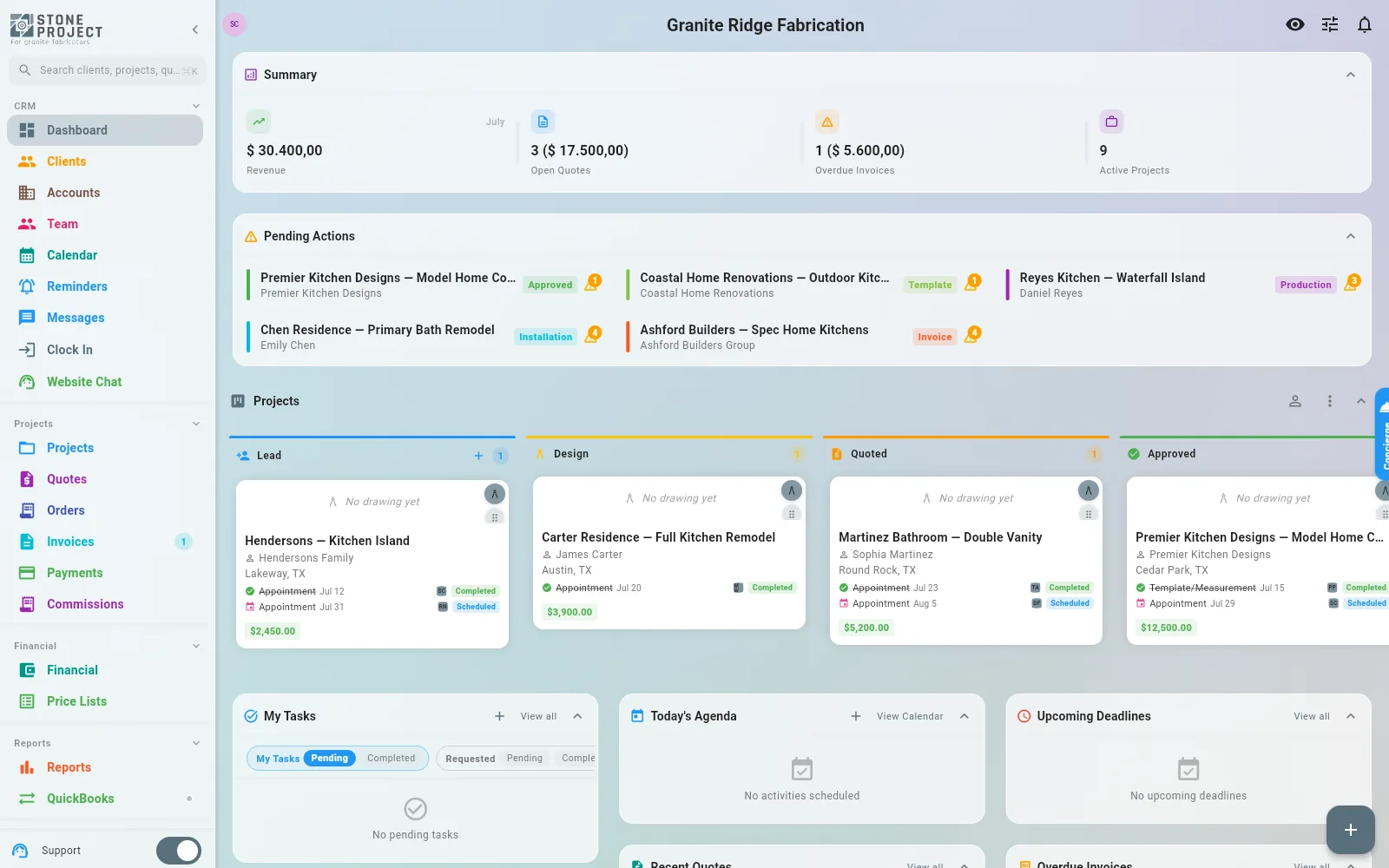
The board has three tabs:
| Tab | What it shows |
|---|---|
| My Tasks | Open tasks assigned to you — pending, in progress, and snoozed |
| Requested Tasks | Open tasks you created for someone else. Your delegation list |
| Completed Tasks | Tasks you have finished, so you can look back at what was done |
Each row shows the priority as a colored icon, who it belongs to, the project it relates to, the dates, and a status pill.
Reading a task row
| Element | Meaning |
|---|---|
| Colored icon | Priority — grey Low, blue Medium, orange High, red Urgent |
| Person + avatar | The assignee on Requested and Completed tabs; the creator on My Tasks |
| Project code | Tap it to jump straight to the project |
| Flag date | The due date. Today shows as Today! in orange, past due shows the days overdue in red, anything within two days is orange |
| Status pill | Pending, In Progress, Snoozed, or Completed |
Pull down to refresh.
Where tasks come from
Some tasks you create yourself. Others the app creates for you, every morning at 6:30 AM, and whenever something happens that needs a follow-up:
| Trigger | Task created |
|---|---|
| Project moves to Lead | Contact new lead: client |
| Project moves to Production | Order material: project |
| Project moves to Completed | Send final invoice: project |
| An activity is scheduled for today | A reminder to run it |
| An activity has gone past its date | An overdue-activity task |
| A quote has been sitting unanswered | Follow up on the quote |
| An invoice is past due | Chase the payment |
| A project has had no movement for a while | A stale-project nudge |
| A checklist item is assigned to a team member | That item as a task for that person |
Auto-generated tasks also close themselves when the underlying thing is resolved. Moving a project to Production clears its "collect deposit" and "order material" tasks; ticking a checklist item closes its task; sending the invoice closes the invoice task. You are not expected to tidy up after them.
23.3 Creating a Task
- On the Tasks board, tap the + in the top bar (or the + on the Dashboard's My Tasks card).
- Fill in:
| Field | Description |
|---|---|
| Title | Required. What needs to happen |
| Description | Optional detail |
| Project | Optional. Links the task to a job so it can be opened from the task |
| Priority | Low, Medium, High, or Urgent — Medium by default |
| Due date | Optional. Defaults to today if you leave it blank |
| Assign to | Assign to me or Assign to other — pick a team member |
- Tap Create Task.
A task you assign to someone else lands in their My Tasks tab and in your Requested Tasks tab.
One task per person
A task belongs to a single assignee. To give the same job to three people, create it three times — that way each person can complete their own copy without stepping on the others.
23.4 Working a Task
Tap any task to open its action sheet. What you see depends on the task:
| Action | Available when | What it does |
|---|---|---|
| View project | The task is linked to a project | Jumps to the project detail |
| Complete | The task is not finished | Marks it done and moves it to the Completed tab |
| Reopen | The task is finished | Puts it back in the open list |
| Edit | Always | Change title, description, priority, due date, or assignee |
| Discussion | Always | Opens the comment thread — see 23.5 |
| Dismiss | Auto-generated tasks that are open | Hides it without marking it done — for a nudge that does not apply |
| Delete | Tasks you created by hand | Removes it, after a confirmation |
| View details | The task points at a related record | Opens whatever the task is about — an invoice, a quote, an activity |
Dismiss and Delete are not the same
Delete is only offered on tasks a person created by hand. Auto-generated tasks cannot be deleted — the app would just recreate them on the next run. Use Dismiss instead: it clears the task from your list without claiming the work was done.
Reassigning a task
Open the task, tap Edit, and change the Assigned user. The task moves to that person's list.
23.5 Task Discussions & @Mentions
Every task carries its own comment thread, so the back-and-forth about a job stays attached to the job instead of scattering across chat.
- Open a task and tap Discussion.
- Type in the box at the bottom and send.
Mentioning a teammate
Type @ and a picker of your team members appears. Choose one and their name is inserted into the comment.
The person you mention gets a notification with your name, the task title, and the start of your comment. Tapping it opens Stone Project straight on that task's discussion — even if the task is not assigned to them and does not appear on any of their tabs.
The input works exactly like project chat, so the @ picker behaves the way your team already expects.
Who can be mentioned
Only active members of your company can be mentioned and notified. You cannot mention yourself.
You can delete your own comments. Owners and admins can delete anyone's.
23.6 Reminders
Reminders are the app's calendar-side nudges: a deadline is approaching, a quote is about to expire, someone needs a follow-up. They are not assigned like tasks — they fire at a date and time and notify people.
Access: sidebar > Reminders.
The three tabs
| Tab | What it shows |
|---|---|
| Today | Pending reminders whose date is today. Your morning check |
| Pending | Every reminder still waiting to fire, grouped by date — including ones already past due |
| All | Every reminder in any state, so you can look back at what already fired or was cancelled |
Pending and All group reminders under date headings: Today in orange, Tomorrow in blue, Yesterday in grey, and any earlier date labeled (Overdue) in red. The All tab also shows a status pill on each card.
Reminder statuses
| Status | Meaning |
|---|---|
| Pending | Scheduled, not yet fired |
| Sent | Fired — the notifications went out |
| Cancelled | Called off before firing |
| Failed | The system could not deliver it |
Reminder types
| Type | Typically about |
|---|---|
| Deadline Approaching | A project deadline coming up |
| Quote Expiring | A quote about to pass its valid-until date |
| Follow-up | Checking back in on a client or a quote |
| Overdue | Something already past its date |
| Production Deadline | A fabrication milestone |
| Design Deadline | A drawing or template milestone |
| Installation Reminder | An upcoming install |
| Measurement Reminder | An upcoming measurement |
Tap the filter icon in the top bar to narrow the list by status, by type, or both.
Working a reminder
- Tap a reminder to open whatever it is about — the project or the quote.
- Tap the ⋮ icon on a pending reminder for its menu (long-press or right-click works too):
| Action | What it does |
|---|---|
| Edit | Change the title, message, date, time, and notification channels |
| Reschedule | Push it to a new date |
| Cancel | Stop it from firing, but keep the record |
| Delete | Remove it entirely |
The menu only appears on pending reminders. Once a reminder has fired, there is nothing left to reschedule.
23.7 How Reminders Fire
The system checks for due reminders every 15 minutes, so a reminder set for 9:00 AM goes out within a few minutes of that time.
Notification channels
Each reminder carries its own list of channels, editable from the Edit dialog:
| Channel | Where it lands |
|---|---|
| Push Notification | The phone or the browser |
| The recipient's inbox | |
| In-App | The bell icon inside Stone Project |
At least one channel must be selected. New reminders default to push and in-app.
Who gets notified
- If the reminder was created for a specific person, only that person is notified.
- Otherwise it goes to the company's owners and admins, plus the team member the project is assigned to.
Push notifications respect each person's own notification settings — someone who has turned push off will still receive the in-app and email copies if those channels are on.
Reminders that cancel themselves
A reminder about something already settled is noise, so the system drops it instead of sending it:
- The project or quote it points at was deleted.
- The project has reached Completed or Cancelled.
- The quote has been accepted, rejected, or has expired.
In each case the reminder is quietly marked as cancelled and never fires.
23.8 Follow-up Reminders on Quotes and Projects
Follow-up reminders hang off a quote or a project, and every one of them carries the same fields — visible when you open a pending reminder and tap Edit:
| Field | Description |
|---|---|
| Date and Time | When it fires. The time defaults to 9:00 AM |
| Title | The notification headline |
| Message | The body of the notification |
| Notify by | Push, Email, In-App — at least one must stay selected |
Both title and message are required, and the date cannot be pushed into the past. The reminder's type is fixed when it is created and cannot be changed afterwards.
Alongside these, quotes get chased two other ways that need no setup from you at all:
- A follow-up task. A quote that has been sitting unanswered generates a task to chase it. The task closes itself when the client responds or the project moves to Approved.
- An automatic follow-up email to the client. A quote still in Sent status with no response gets a follow-up email 3 days, 7 days, and 14 days after it was sent — three attempts, then it stops. These go out each morning at 10:00 AM and are recorded in the quote's email history.
23.9 Deadline Reminders from Projects and Activities
Not every reminder is one you wrote. The system generates them for project deadlines, quote expirations, and scheduled activities — activity reminders reach the assigned person (and admins, for templates and installs) about 24 hours before the appointment.
Your customer gets one too. When a Template, Installation, Delivery, Appointment or Inspection is scheduled on a job, the customer on that job receives a reminder e-mail about 24 hours before, sent as your company, with the date, time, address and your phone. Replies go to your company e-mail (or wherever Settings → Email → Reply-To points). This is on by default; switch it off for the whole company at Settings → Notifications → Client activity reminders.
This is covered in full under Calendar > Deadline Reminders.
23.10 The Daily Summary
Every morning at 8:00 AM, Stone Project puts together a summary of what needs your attention:
| Section | What it lists |
|---|---|
| Overdue projects | Projects past their deadline, with the client and how many days late |
| Due today | Projects whose deadline is today |
| Upcoming | Projects with a deadline in the next 7 days |
| Expiring quotes | Quotes expiring within 7 days, with the client, total, and valid-until date |
| Quotes needing follow-up | Quotes sent with no response yet, and how long they have been waiting |
Combined with the Today tab on Reminders and the My Tasks card on the Dashboard, that is the whole morning check: what is late, what is due, and who owes you what.
Order of operations
Auto-generated tasks are built at 6:30 AM, the daily summary goes out at 8:00 AM. By the time the summary reaches you, the day's tasks are already sitting in your list.
Related
- CRM & Client Management — projects, quotes, and project checklists
- Calendar & Scheduling — activities and deadline reminders
- Communication — chat and @mentions elsewhere in the app
- Company Management — team members and roles
- Settings — notification preferences